

TB-005: Storage Health Testing at CleanSpec Lab
How We Evaluate SSDs and Hard Drives Before They Go Into a Computer
When most people buy a computer, they look at the processor, memory, storage size, and price.
That makes sense. Those are the headline specs.
But storage health matters too.
A computer’s SSD or hard drive is where Windows, programs, documents, photos, and personal files live. A fast processor does not mean much if the storage device is worn out, unstable, or hiding early signs of failure.
At CleanSpec Lab, we do not treat storage as an afterthought. Every drive we install is checked before a computer is listed for sale.
Our goal is simple:
No mystery drives. No “probably fine.” No guessing.
The Simple Version
Every CleanSpec Lab computer receives a storage health check before sale.
For SSDs, we look at health percentage, usage history, power-on time, error indicators, and manufacturer-reported wear data when available.
For hard drives, we look for signs of mechanical or surface-related problems, including reallocated sectors, pending sectors, uncorrectable sectors, abnormal warnings, and other SMART indicators.
SMART stands for Self-Monitoring, Analysis, and Reporting Technology. In plain English, it is the drive’s built-in way of reporting its own condition.
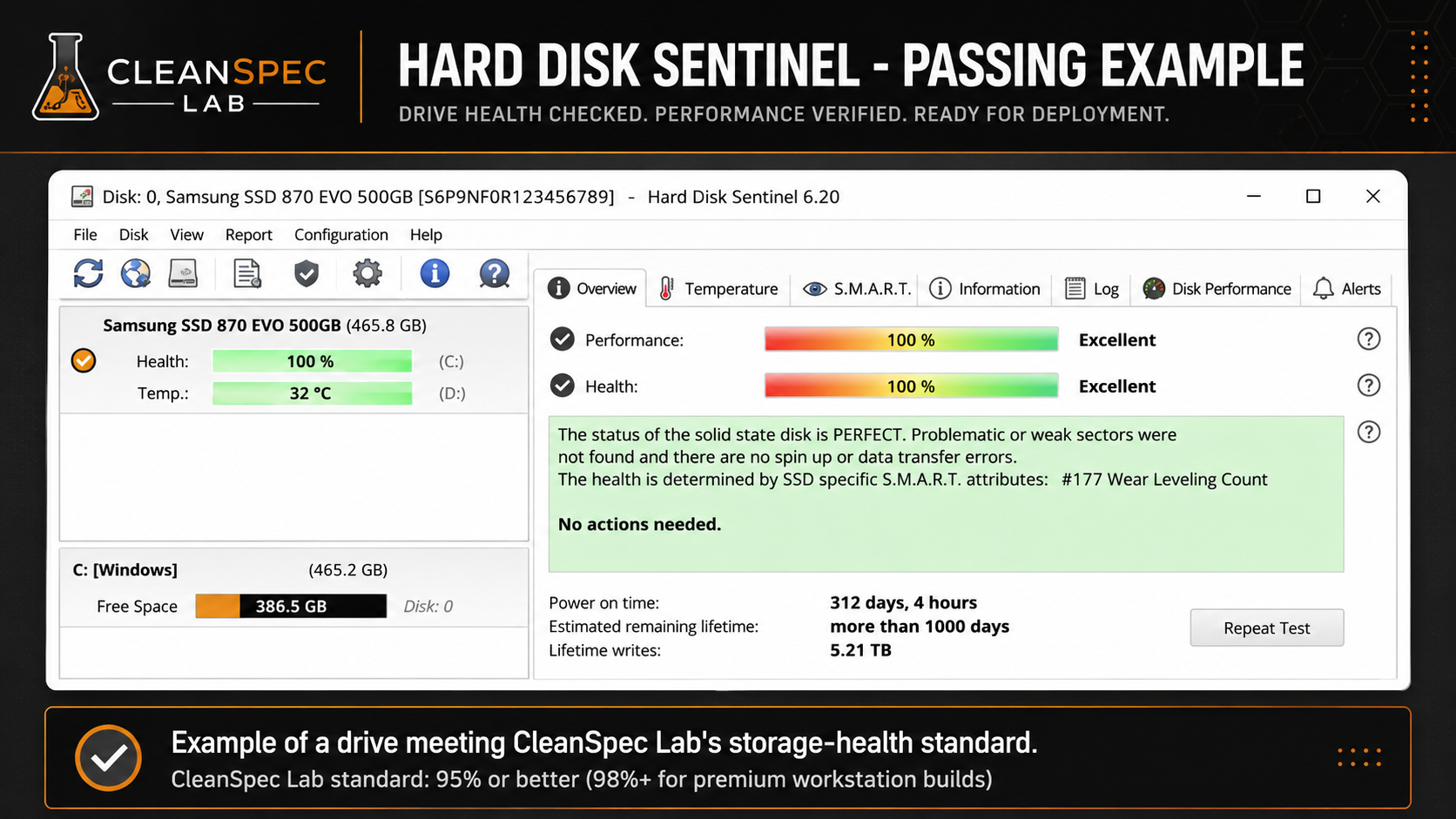
We use recognized diagnostic tools, including Hard Disk Sentinel and CrystalDiskInfo, to review the drive’s reported health and warning indicators.
For CleanSpec Lab listings, our current standard is:
Storage health must be 95% or better.
For premium “halo” workstation builds, our internal target is even stricter:
Storage health should be 98% or better.
That does not mean a drive below those numbers is automatically dead. It means it does not meet the standard we want for a CleanSpec Lab machine.
Why Storage Testing Matters
Used business computers often come from offices, lease returns, surplus channels, or mixed hardware lots.
That can be a great thing. Business-class machines are often better built than typical consumer desktops. They are designed to be serviced, repaired, and kept in use.
But it also means the storage history can vary widely.
Two drives with the same capacity can have very different lives:
One 512GB SSD may have only light office use.
Another 512GB SSD may have years of heavy writes, high power-on hours, or early warning signs.
On the outside, they may look identical.
Testing is how we tell the difference.
What We Look For
CleanSpec Lab does not rely on storage size alone. A “512GB SSD” is not automatically better than a “256GB SSD” if the larger drive has poor health or warning indicators.
We look at:
Health percentage
A quick summary of the drive’s reported condition.
Power-on hours
How long the drive has been powered during its lifetime.
Power cycle count
How many times the drive has been turned on and off.
SSD wear indicators
Many SSDs report lifetime usage, remaining life, total data written, or similar endurance-related values.
SMART warnings
SMART attributes can expose warning signs that are not obvious during normal use.
Bad, pending, or reallocated sectors
On hard drives especially, these can indicate media problems or areas of the drive that have become unreliable.
Temperature history
Excessive heat is not ideal for storage longevity, especially in compact systems.
Consistency with the build
We verify the storage that is actually being sold with the computer, not just whatever happened to be in the machine during early setup.
Why We Use More Than One Tool
Different tools present drive information differently.
CrystalDiskInfo is fast, familiar, and widely recognized. It clearly reports drive model, health status, temperature, and SMART information. CrystalDiskInfo’s own documentation shows health states such as Good, Caution, Bad, and Unknown, and it reports caution states when certain raw SMART values exceed configured thresholds.
Hard Disk Sentinel provides a more detailed storage-health view and is more conservative in how it evaluates certain drive conditions. It monitors health, temperature, SMART attributes, and real-time transfer speed, which can help identify possible failures or performance degradation.
Our process uses the strengths of both styles:
CrystalDiskInfo is useful for quick confirmation and widely understood screenshots.
Hard Disk Sentinel is useful for deeper evaluation, health percentage standards, and final CleanSpec Lab storage acceptance.
As our process has matured, we have moved toward using Hard Disk Sentinel as the final storage-health authority for CleanSpec Lab builds.
SSDs vs. Hard Drives
SSDs and hard drives fail differently.
An SSD has no spinning platters or moving heads. It stores data in flash memory. SSDs often report wear-related values because flash memory has a finite write endurance.
A hard drive is mechanical. It has spinning platters, moving read/write heads, and physical magnetic surfaces. Hard drive warning signs often involve sectors that are damaged, unstable, pending reallocation, or unreadable.
Because of that, we do not evaluate SSDs and hard drives in exactly the same way.
For SSDs, we care heavily about reported health, wear, data written, power-on hours, and error counters.
For hard drives, we are especially cautious about surface-related warnings, reallocated sectors, pending sectors, uncorrectable sectors, and abnormal SMART behavior.
CrystalDiskInfo specifically identifies reallocated sectors, current pending sectors, and uncorrectable sectors as HDD health-warning attributes in its health status documentation.
Our Current CleanSpec Lab Storage Policy
For standard CleanSpec Lab computers:
Minimum storage health: 95%
For premium workstation or halo builds:
Preferred minimum storage health: 98%
If a drive is below our standard, we do not use it in that build.
If a drive shows concerning warning signs, we reject it even if the computer appears to boot normally.
If a drive passes quick visual inspection but later reports poor health, it is removed from the build.
This matters because a storage device can appear to work today while still showing signs that it is not the right choice for a customer machine.
What About Windows CHKDSK?
Windows includes a built-in tool called CHKDSK. Microsoft describes CHKDSK as a command that checks the file system and file system metadata for logical and physical errors. With certain options, it can also fix errors on the volume.
CHKDSK is useful, but it is not the same as a full storage-health evaluation.
CHKDSK mainly looks at the file system and volume structure. It can help find and repair Windows-level disk issues.
SMART tools look at what the drive itself is reporting about its condition.
Both can be useful, but they answer different questions.
CHKDSK asks:
“Is this Windows file system reporting errors?”
SMART-based storage tools ask:
“Is this physical storage device showing signs of wear, damage, or failure risk?”
At CleanSpec Lab, we care about the second question before a machine is listed.
Why We Do Not Promise a Drive Will Last Forever
No honest seller can promise that any used SSD or hard drive will last forever.
New drives can fail. Used drives can fail. Electronics are never risk-free.
What we can do is reduce avoidable risk.
That means checking the drive before sale, rejecting drives that do not meet our standard, and being transparent about the storage installed in the machine.
Storage testing is not magic.
It is quality control.
How This Fits Into Our Broader Testing Process
Storage testing is one part of the CleanSpec Lab validation process.
Depending on the machine, we may also run:
BIOS diagnostics
Memory testing
Windows installation and activation checks
Driver and firmware updates
Thermal checks
OCCT Bronze workload testing on selected workstation builds
GPU validation where applicable
Final visual and functional inspection
For workstations and higher-performance systems, storage health is especially important because those machines are more likely to be used for heavier workloads.
A workstation with a strong CPU, dedicated GPU, and premium cooling deserves storage that matches the intent of the build.
Technical Notes for Advanced Readers
SMART Is Useful, But It Is Not Perfect
SMART data is reported by the drive. Different manufacturers may report values differently, especially across SATA SSDs, NVMe SSDs, enterprise drives, consumer drives, and hard drives.
That is why CleanSpec Lab does not rely on one single number in isolation.
A health percentage is helpful, but it is not the whole story.
We also look at the surrounding indicators.
A drive with 100% health but odd warnings deserves attention.
A drive with no visible Windows problems but concerning SMART history may still be rejected.
A drive that passes one tool but raises concern in another is reviewed more carefully.
NVMe Drives Report Their Own Health Data
Modern NVMe SSDs use NVMe health and error reporting mechanisms. NVMe documentation describes SMART/health information and error log pages used to report conditions such as errors and drive status.
That matters because many newer business workstations use NVMe storage instead of older SATA drives.
NVMe drives are fast, but speed alone does not prove condition.
We still check health, usage, temperature, and error reporting.
Why Health Percentage Alone Is Not Enough
A health percentage is a summary.
Summaries are useful.
But summaries can hide details.
For example, a drive may show acceptable health but have high power-on hours. Another may have lower hours but show warning attributes. A third may be technically functional but not appropriate for a premium workstation build.
That is why our process looks at both the simple summary and the technical details behind it.
Why We Are Conservative
CleanSpec Lab sells refurbished and professionally prepared systems. That means our job is not to squeeze every last possible hour out of every used part.
Our job is to build machines we are comfortable putting our name on.
A lower-health SSD might still be useful for personal testing, temporary use, non-critical storage, or parts-bin work.
That does not mean it belongs in a customer computer.
Our rejection standard is intentionally more conservative than “will it boot?”
CleanSpec Lab’s Storage Testing Philosophy
A computer should not just power on.
It should be prepared.
It should be checked.
It should be documented.
And when there is doubt, the part should not go into the customer build.
That is the difference between assembling used parts and producing a CleanSpec Lab machine.
Storage testing is not the flashiest part of the process.
But it is one of the most important.
Because the customer may never see the SSD.
They may never open the case.
They may never look at a SMART report.
But they will trust that the computer was prepared carefully before it arrived.
That is the point.
Clean hardware. Verified storage. Documented process. Built with standards.
